9.3. VulcanAI Console
Note
VulcanAI is currently in active development, and new features and improvements are being added regularly. Current version is in Beta stage.
The VulcanAI Console is the main interactive interface for VulcanAI. Even though it is not mandatory to use the library, it improves readability and day-to-day usage by providing a structured terminal experience for prompts, tool execution, and responses. The VulcanAI textual terminal also provides interactive command execution, command history and keyboard shortcuts to speed up common operations.
9.3.1. Keyboard Shortcuts
Shortcut |
Description |
|---|---|
|
Display the terminal help message. |
|
Copy the currently selected terminal area to the clipboard. |
|
Paste the clipboard in the console input area. Using the middle button on the mouse also pastes the clipboard. |
|
Start reverse search through command history. |
|
Clear the terminal quickly. |
|
Auto-complete the command while typing. |
9.3.1.1. Text Selection and Clipboard
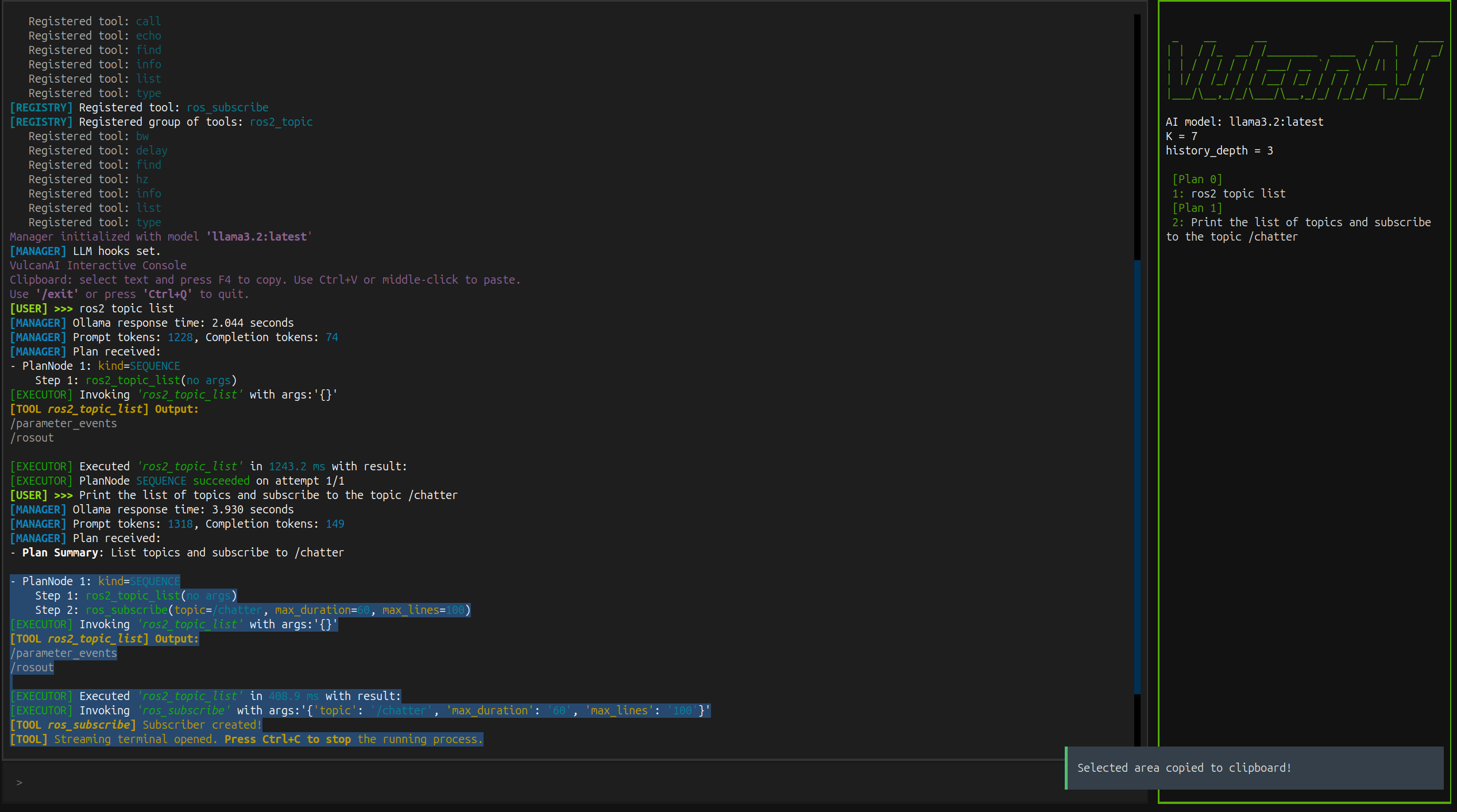
You can select any area in the terminal by left-clicking and dragging over the desired text.
Once text is selected, press F4 to copy the selected area to the system clipboard.
Do not hold Shift while selecting text.
If Shift is pressed during the selection, both the main panel and the history panel are selected, so copying with F4 or Ctrl+C will not capture the intended text correctly.
Note
On Linux, clipboard integration requires xsel or xclip to be installed.
For example, on Ubuntu systems, run sudo apt install xclip.
9.3.1.2. Reverse search with Ctrl+R
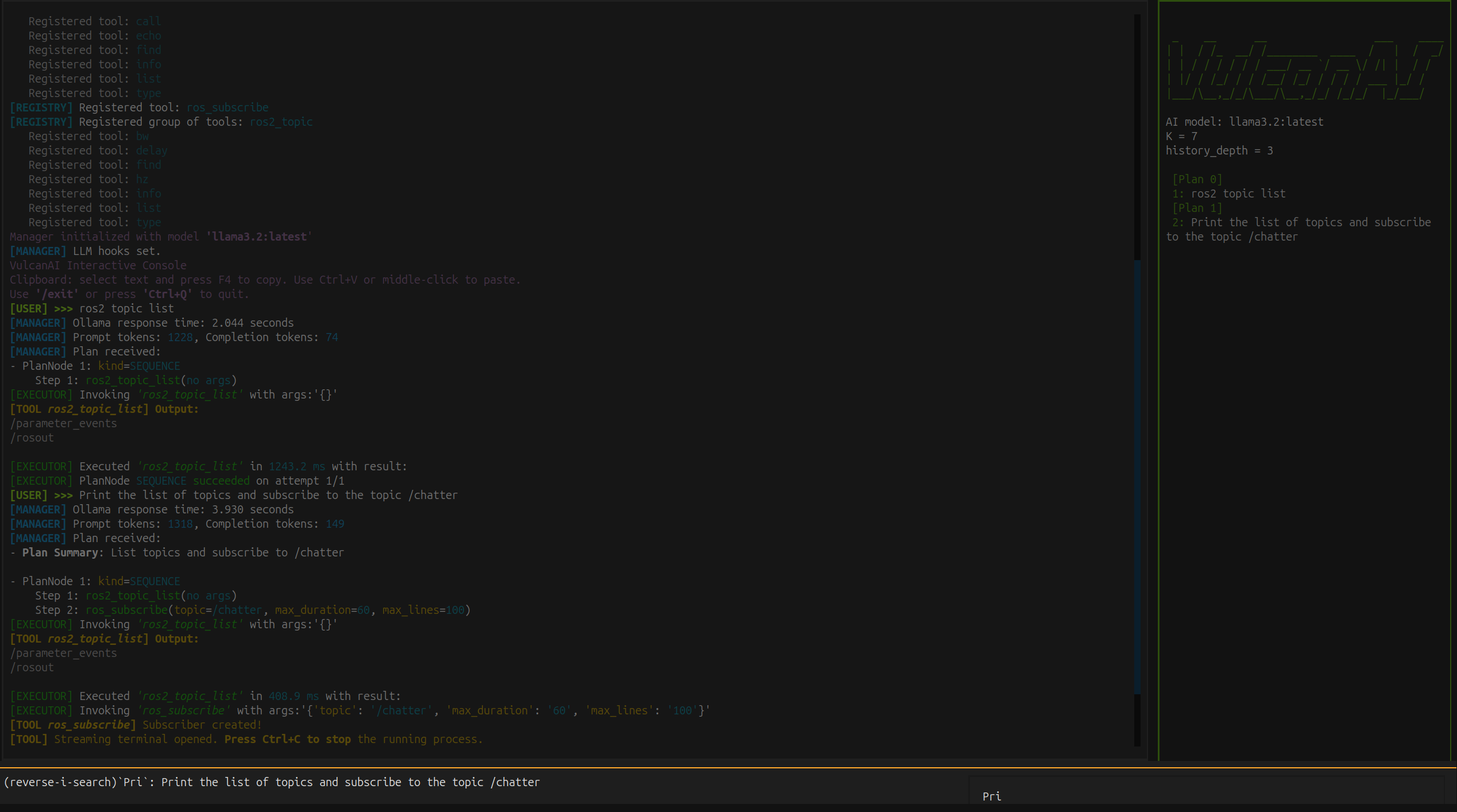
The console also supports reverse search through the command history.
Press Ctrl+R and start typing part of a previous prompt or command to browse matching entries, as shown below.